Set Custom Desktop Icon Vertical & Horizontal Spacing
One of the features that most Windows enthusiasts miss in Windows 8 is Windows Color and Appearance. As the name suggests, it is a UI related settings dialog box that allows you to change the size and colors of desktop elements. One of its options allow users to change the vertical and horizontal spacing between the desktop icons. In Windows 8, you can change the default values of vertical and horizontal spacing using the Windows registry editor. In order to change the icon spacing, head over to the following registry key.
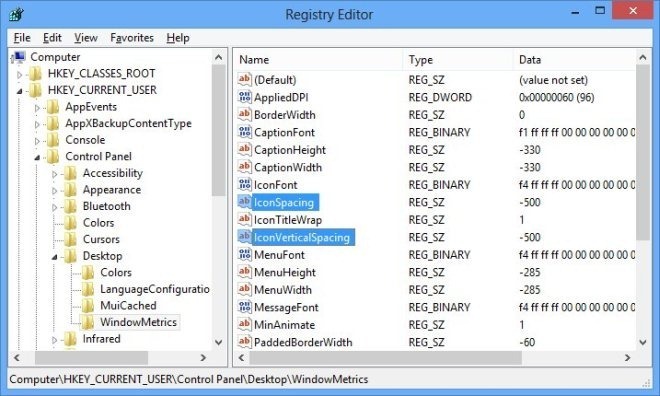
HKEY_CURRENT_USER\Control Panel\Desktop\WindowMetrics
Now, from the right side, look for the keys named “IconSpacing” and “IconVerticalSpacing”. By default, the value of both keys is set at –1125. You can increase this number to increase the space between desktop icons.
TKB:1026